
Hey, counselors and instructors! Peace Out in your Tie Dye and have an AMAZING day with your campers!
Variables Tab
Class Connect should already be completed with campers for this session.
Teacher Code for this session: _____________________________
Campers log into: Code.makewonder.com
Instructors should review the calendar for the day to ensure they are dressed to match the theme of the day.

Welcome Campers: 15 minutes
- Instructor Introduction- How did you all make out with your “Campified Home Challenges Last Night?
- Campers Respond to questions.
- If time permits have a camper share their finished project.
- Under the Sea Day! Compliment their participation.
Log On Help:
- Ask if any camper had difficulty logging in to Zoom.
- Review logging in to the simulator. Address any issues.
Review Variables Tab: 30 minutes
- Share all of the command blocks in this folder:
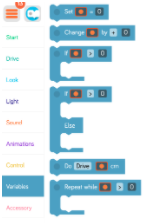
- Model how to open each command block and change parameters.
- Set ___ = # block. This command is to set the certain fruits to certain numbers. You will call back to this block in order to use other blocks in the Variables Folder. You must tell the program the values of the fruits before calling to those fruits in the later blocks.
- You can set the fruit’s value in many different ways.
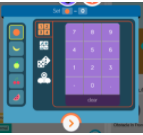
- On the left you choose the fruit you want to use. If you want to set it to a number, use the top grid of 1,2,3,4 and choose a number to set it to. If you want to set the fruit to another fruit’s value, choose the option below. If you want the fruit to get a random value, choose the dice option, and if you want the fruit to have a function where Dash needs to have an input, choose the Dash icon.
- With the Change variables block, you can multiply the value of the fruit, add, subtract, or divide.
- The If and the Repeat blocks in the Variables tab work the same as the If and the Repeat blocks in the Controls tab, however, this time they depend on the variables, not on the inputs on Dash.
- The Do block in the Variables tab lets you make Dash do a certain task when that fruit is set to a certain value.
- This is the most complex tab in the program. It takes creative thinking and problem solving in order to master this tab.
- Q & A time.

Introduce Roll the Dice activity: 15 minutes
- Dash wants to play a board game. Make up a game where Dash is the piece that moves around the board. The board is the simulator Dash’s Neighborhood.
- Use Variables to roll the dice to set how far Dash moves each turn.
- Set each fruit in the variables tab as a different number – this can be done by rolling the dice!
- This game should use two dice that are six-sided. That would make the lowest number that a fruit could represent 2 and the highest is 12.
- Each fruit should then change numbers throughout the course of the game. You can do this within the variables tab as well.
- Have dash move the amount of cm that is represented by the roll of the dice multiplied by ten.
- You should be able to:
- Explain the rules of the game to the class.
- Explain how to “win” the game or explain how the game ends.
- Set parameters of what the “board” is within Dash’s neighborhood. Examples:
- The dotted rectangle
- The whole board
- Only the orange squares
- Showcase the program where Dash moves after the dice are rolled.
- Have Dash react to certain rolls
- Celebrate when a 12 is rolled
- Sigh when a 2 is rolled
- If Dash gets “stuck” with an obstacle in front, have Dash backup 50cm and turn 180 degrees.
- Use at least one wait block.
- Use at least one repeat block.
- Use at least one if block.
Complete Roll the Dice Activity: 60 minutes
- Check in on campers as they continue working
- Answer any questions that come up from campers
Wrap up activity: 60 minutes
Instructor to review appropriate behavior when campers are sharing.
- When we are sharing, we are only using positive words.
- Instructor gives an example: “John, I really liked how you were able to use all the color lights in your program.”
- We should feel good after someone comments on our work.
- Ask who would like to share their program with the group? (instructor selects who will share first)
- If there is time remaining, campers can continue with the puzzles from yesterday. Click the 3 orange lines in the upper left hand corner and select puzzles. Remind campers that you can monitor their progress while they are completing the puzzles.
Day Four- Be Creative it’s Play Time- Home Challenge
Dash was nominated to be part of a play that the camp is putting on. It will be in front of the entire camp. Dash will need to remember his lines and do a big dance finale at the end. Get ready to shine. Campers will use the simulator to create a program that will incorporate the Control Tab, Drive Tab, Light and Sound Tab along with animations, functions and variables. Dash is nervous but with practice it will be the performance of a lifetime. Campers will create a program in Blockly that includes the following:
- Dash is practicing for the camp play. He has the lead role. The play is called A Robot at Camp. Be creative.
- First draw a large square on paper and draw where specific activities take place at camp.
- The play is about Dash making his way around camp being involved in the activities. Example: swimming, soccer, arts and crafts, tennis, baking and cooking, baseball, etc…..
- Choose 4 activities that you drew and create a program where Dash is experiencing each of these activities.
- Make sure you are using the control tab, drive tab, light and sound tab. In addition, to add fun include blocks from the animation tab.
- Your program should showcase Dash performing what a day at camp would look and feel like.
Make sure that when you have completed this challenge you save your work as Dash’s Play. Tomorrow you will have the opportunity to share your program with the group. Remember if something is not looking right with your program, review the directions and problem solve while looking within your program. You may need to change a block or two in order for Dash to move the way you want him to. Good Luck!
Additional Home Activities: