
Welcome To Day Four!
Dress Like a Robot DayWeek One, Three Hour Program
Hey, counselors and instructors! We hope you got creative with your robot outfit and are ready for an AMAZING day with your campers!
Variables Folder
Class Connect should already be completed with campers for this session.
Teacher Code for this session: _____________________________
Campers log into: Code.makewonder.com
Instructors should review the calendar for the day to ensure they are dressed to match the theme of the day.
Welcome Campers: 15 minutes
- Instructor Introduction- How did you all make out with your “Campified Home Challenges Last Night?
- Campers Respond to questions.
- If time permits have a camper share their finished project.
- Dress Like A Robot Day! Compliment their participation.
Log On Help:
- Ask if any camper had difficulty logging in to Zoom.
- Review logging in to the simulator. Address any issues.
Review from yesterday’s session
- Yesterday we learned many things. We learned how to use all the repeat blocks, as well as the wait block, if block, and if/else block.
- We were able to drag and drop command blocks from each folder to create a program that you wanted Dash to complete.
- Today we will continue with learning different commands so we can have Dash do more.

Introduce Control Folder:
- Yesterday we used all of the blocks in the Control Folder. Today we are going to explore the Variables Folder.
- Share all of the command blocks in this folder:
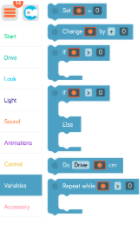
- Model how to open each command block and change parameters.
- Set ___ = # block. This command is to set the certain fruits to certain numbers. You will call back to this block in order to use other blocks in the Variables Folder. You must tell the program the values of the fruits before calling to those fruits in the later blocks.
- You can set the fruit’s value in many different ways.
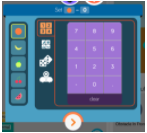
- On the left you choose the fruit you want to use. If you want to set it to a number, use the top grid of 1,2,3,4 and choose a number to set it to. If you want to set the fruit to another fruit’s value, choose the option below. If you want the fruit to get a random value, choose the dice option, and if you want the fruit to have a function where Dash needs to have an input, choose the Dash icon.
- With the Change variables block, you can multiply the value of the fruit, add, subtract, or divide.
- The If and the Repeat blocks in the Variables tab work the same as the If and the Repeat blocks in the Controls tab, however, this time they depend on the variables, not on the inputs on Dash.
- The Do block in the Variables tab lets you make Dash do a certain task when that fruit is set to a certain value.
- This is the most complex tab in the program. It takes creative thinking and problem solving in order to master this tab.
- Q & A time.
Campers Independent Practice of Control Folder
- Campers are going to be released to practice what was taught today.
- Imagine you are at summer camp. Dash is playing Wiffle Ball. Have Dash hit a single (run to first base), then come back to home plate. Then hit a double (run to first base and then second base), then come back to home. Then hit a triple (run to first base, then second base, then third base), then back to home. And finally hit a home run (run from first base, to second base, to third base, to home plate.)
- You should be using the Variables folder to create your program. You also can have separate programs for each of the hits: single, double, triple, home run. Or, you can do it in one big program.
- Here are the guidelines for their practice.
- Create a program where you are using command blocks from all of the folders as they coincide with the Variable commands.
- Beginners can create a smaller program with fewer blocks.
- Advanced campers can create a more extensive program.
- Instructors should be aware of the time. Campers should have enough time to share as well as being shown the “Campified” Home Challenge.
- Have campers save their program as Wiffle Ball. If they are doing four different programs have them save them as Single, Double, Triple, and Home Run.
Wrap up: 45 minutes
Instructor to review appropriate behavior when campers are sharing.
- When we are sharing, we are only using positive words.
- Instructor gives an example: “John, I really liked how you were able to use all the color lights in your program.”
- We should feel good after someone comments on our work.
- Ask who would like to share their program with the group? (instructor selects who will share first)
- If there is time remaining, campers can continue with the puzzles from yesterday. Click the 3 orange lines in the upper left hand corner and select puzzles. Remind campers that you can monitor their progress while they are completing the puzzles.
Instructor Explains the Beat the Heat Home Challenge Activity Directions
Day Four: Beat the Heat – Home Challenge
Campers will spend a day beating the heat with Dash. They will use the simulator to create a program that will incorporate the Control Tab, Drive Tab, Light and Sound Tab along with functions and variables. Dash is going to play on the water pad at camp to cool down. Campers will create a program in Blockly that includes the following:
- Dash is so overheated from the camp sun. Dash needs to be cooled off on the camp’s water pad. Dash has to get there and it involves a few turns. Dash needs to drive a total of 150 cm, turn left and go 60 cm, and then finally say “Okay”.
- Dash is ready to play and cool off in the water. He sees that there is a huge sprinkler and he wants to be the first to get there. Using the Control Tab, make Dash drive backwards 170 cm so he can keep an eye on the other campers. Also turn all his lights on to your favorite color, and record Dash saying, “ I can’t wait to cool off!”
- Dash looks left and right and sees his robot friend approaching and DAsh says, “Hi.”
- Dash will “spin out” to the next water activity.
- Dash has to move forward 60 cm, turn right and go another 40 cm to the next water activity.
- When Dash gets there he turns his right ear blue, left ear, green, and the front light white.
- Dash wants to run through the water sprayer and into the pool at the end. Dash needs to move at the quickest speed possible. Dash “spins out” (animations tab). The pool is 120 cm. Use the control tab to accomplish that distance.
- After Dash runs 120cm he will do a “silly dance”. (animations tab) Then finish with a recording of your voice saying- “This was the coolest camp day ever!”
Make sure you save your program as the Beat the Heat. Tomorrow you will have the opportunity to share your program with the group. Remember if something is not looking right with your program, review the directions and problem solve while looking within your program. You may need to change a block or two in order for Dash to move the way you want him to. Good Luck!
More at home extension activities:
- Mini Mission 6
- Challenge Cards