Welcome To Day One!
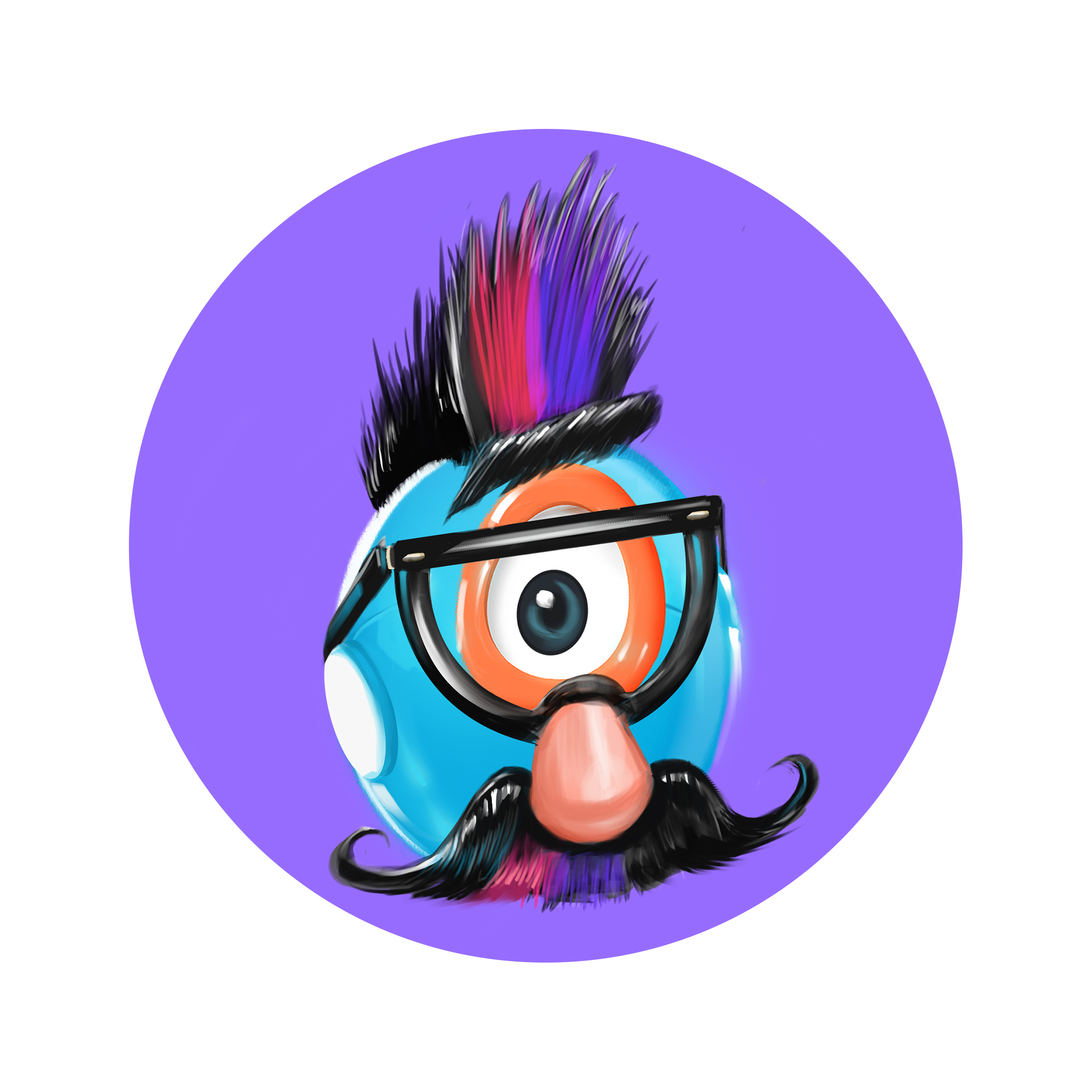
Crazy Hat DayWeek One, Three Hour Program
Hey, counselors and instructors! We hope you have your Crazy Hat on and are ready for an AMAZING day with your campers!
Drive/Look/Light Folders
Class Connect should already be completed with campers names entered prior to the class starting.
Campers log into: Code.makewonder.com
Teacher Code for this session: __________________________
Instructors should review the calendar for the day to ensure they are dressed to match the theme of the day.
Welcome Campers: 15 minutes
- Instructor should be wearing a crazy hat to go along with the theme of the day.
- Instructor Introduction- With excitement tell the campers why you are excited to teach this virtual robotics program.
- Campers Introduction- Name and grade level. What is one thing you are looking forward to in this program?
- Crazy Hat Day! Compliment their participation.

Log On Help: 15 minutes
- Ask if any camper had difficulty logging in to Zoom.
- Address any issues with logging in to the virtual simulator.
- Model how to toggle back and forth from Zoom to Simulator.
- Model how to Share Their Screen. Select the green button at the bottom of the Zoom screen. Instructors need to allow screen sharing for all participants.
Introduce Blockly Program: 15 minutes
- Instructors will share their screen with the simulator and give an overview of Blockly.
- Goes over the names of each folder.
- Talk about the START block. All command blocks need to be connected to START otherwise Dash will not follow your program.
- All command blocks need to be connected to each other and then to start otherwise Dash will not know what you want it to do.
- Model how to connect command blocks together and attach to START.
Introduce Drive Folder: 15 minutes
- Overview of the skills for the day. “Today you will be able to create a program in Blockly that includes the Drive, Look, and Light Folders.”
- Instructors need to share their screen and show the prefabricated program for engagement.
- Instructor to create prior to session starting:

- Play the program so campers can see what they will be completing at the end of the lesson.
Instructors will go over the Drive Folder, Look Folder, and Light Folder.
- Instructors need to share their screen so campers can see the screen as the instructors are modeling.
- Open Drive Folder- share all of the command blocks.
- Choose the Forward Command Block.
- Open the parameters and show how it is always set to 50 cm and normal speed.
- Show how to change the distance and speed. Set to 70cm and fast speed. Connect that forward block to START.
- Share that it is the same to change the parameters in the backwards tab as well.
- Select the Turn Left block.
- Open it and show how to change the degree Dash will turn. It is the same for the Turn Right block. Connect the block to START.
- Finally share the Set Wheel Speed tab.
- Tell campers that is another way to have Dash turn by setting the parameters differently for each wheel.
- “Now it is your turn to try the commands in the Drive Folder.

Campers Practice Drive Folder- 15 minutes
- Campers will create a 10 block program using the Drive Folder.
- Instructors are available for support and should be checking in with each camper to check how they are doing.
- Instructors should recommend that as the campers are creating their program that they are testing out their program to make sure it is working the way they want it to.
- If a camper is struggling, have that camper share their screen with you. That way the instructor can facilitate that camper.
- After 15 minutes- the instructor invites them back together.
- Choose 2 campers to share their program. Remind them of the positive behavior that is shown when others are sharing.
- Instructors should model how a camper can save their program.
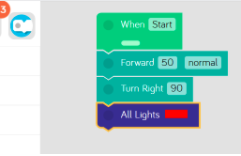
- Campers click the blue and white circle in the left corner of the simulator.
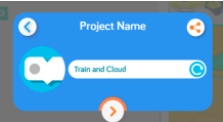
- Type in the name that they want to call this program and click the orange arrow when finished.
- To get back their saved program:

- Click on the 3 orange lines in the upper left corner.
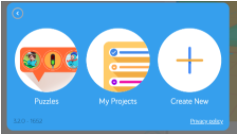
- Now the caper can select My Projects and search for the specific named project that they saved.
- Q & A on the Drive Folder.
- Introduce Look & Light Folders: 15 minutes
- Introduction to Look and Light Folders (refer to Look & Light Intro doc.)
- Instructor Led introduction to each folder.
- Open the Look Folder.
- Share in that folder they will see the Look right, look left, look up and look down command blocks.
- Model Parameters- Open the Look Right block- model how to turn that into Look Left by moving the white bar over to the other side.
- Open the Light Folder- Share all of the command blocks- All lights, right ear, left ear, front, and eye pattern.
- Model Parameters- Open the All Lights Block and show how they can change all of Dash’s lights.
- Mention they can also change each individual light color as well.
Campers Practice- Drive, Look, and Light Folders: 15 minutes
- Campers will create their own program using the Look & Light Folders.
- Instructors should be asking each camper individually how they are doing.
- If campers are struggling and need assistance the instructor will ask the camper to share their screen and facilitate the camper.
- Instructors should not give the solution, rather work with the camper to problem solve and come up with a solution together.
- After 15 minutes- the instructor invites them back together.
- Choose 2 campers to share their program. Remind them of the positive behavior that is shown when others are sharing.

Independent Practice: 30 minutes
Today during camp we are playing a huge game of tag. As campers are creating their program they should be thinking about how Dash would react playing tag. Ask the campers: “during a game of tag are you walking?” They would respond, “no we would be running.” So, Dash’s speed needs to be adjusted to show that he would be running. Also, mention that Dash would be looking in all directions to make sure that no one is getting close.
- Campers should create a program that consists of command blocks from the Drive, Look, and Light Folders. Encourage campers to have no less than 7 command blocks.
- For more advanced campers they will have the option to include more commands within their overall program.
- Instructors should be checking in with each camper individually to ensure they are working well and they have no questions.
- Instructors should be aware of time, since campers will have time to share their work with the group.
- Instructors bring the group back together.
- Q&A

Wrap up 45 minutes
Instructor to model appropriate behavior when campers are sharing.
- When we are sharing, we are only using positive words.
- Instructor gives an example: “John, I really liked how you were able to use all the color lights in your program.”
- We should feel good after someone comments on our work.
- Ask who would like to share their program with the group? (instructor selects who will share first)
- If there is additional time, campers can complete puzzles.
- Top left corner there are 3 orange lines. Click on that and it will take them to a screen where they can select puzzles. Let them know that the instructors can monitor their progress on the puzzles to make sure that they understand what was taught today.
Home Challenge Activity Directions
- Instructor reviews directions for the Color War Relay Race:
Day One-Color War Relay Race- Home Challenge
Campers will participate in Color War Relay Races with Dash. Using the simulator, they will create a program in Blocky that uses the Start, Drive, and Lights Tabs. What an exciting time, the last day of Color War and it all comes to this last moment, Dash in the relay race for the win. Can he do it? Will his color win? Campers will create a program in Blockly that includes the following:
- Dash is warming up. He is pacing back and forth to calm himself down. Use Drive to complete this. As he is pacing his lights are changing color. Use at least 8 blocks to create this.
- Dash is all set to go. He is at the starting cone. To show he is ready his lights will go from Red, to Yellow, and then finally Green. Do this 2 times.
- Dash will drive forward 80 cm to the next cone.
- He will then turn around and drive 80 cm back to the starting cone.
- He will turn around and Drive 90 cm to pass the cone.
- At this cone his right ear will turn blue! His left ear will turn green. His front light will turn red.
- Then he will drive backwards 100 cm passing the starting cone for the win. This is it! Add some additional speed within the backward’s block to ensure he gets there first!
- When he gets there his right ear light will turn red, his left ear will turn white, and the front light will turn blue. This will show Dash’s Color War spirit.
Make sure that when you have completed this challenge you save your work as Color War. Tomorrow you will have the opportunity to share your program with the group. Remember if something is not looking right with your program, review the directions and problem solve while looking within your program. You may need to change a block or two in order for Dash to move the way you want him to. Good Luck!
Additional Home Activities:
- Challenge Cards